Inviting Users and Managing Scheme Membership
Stratapilot · Help Centre Last updated: June 2026
Overview
Stratapilot uses invite-only access — all accounts are created by a committee executive issuing an invite. This guide covers how to invite new members, assign roles, manage the member list, and revoke access.
Who can manage membership: Only committee executives (Chairperson, Secretary, Treasurer) can invite users, assign roles, and revoke access.
Understanding Roles
Every user in a scheme has exactly one role. Roles control what sections and actions are available.
| Role | Who holds it | Key permissions |
|---|---|---|
| Viewer | All lot owners (default) | Vote in GENERAL polls, submit reports, view public documents, register pets |
| Ordinary Member | Elected committee members | Everything Viewer can do, plus create committee polls, manage reports, view contacts |
| Chairperson | Elected chairperson (one per scheme) | Full executive access — invite users, manage roles, create GENERAL polls, scheme settings |
| Secretary | Elected secretary (one per scheme) | Full executive access |
| Treasurer | Elected treasurer (one per scheme) | Full executive access, plus bank connection and financial settings |
| Caretaker | Building manager/caretaker | View assigned tasks and reports, manage maintenance, upload to Maintenance and Correspondence categories |
There can be only one Chairperson, one Secretary, and one Treasurer per scheme at any time. Assigning one of these labels to a new member automatically clears it from the previous holder.
Inviting a New Member
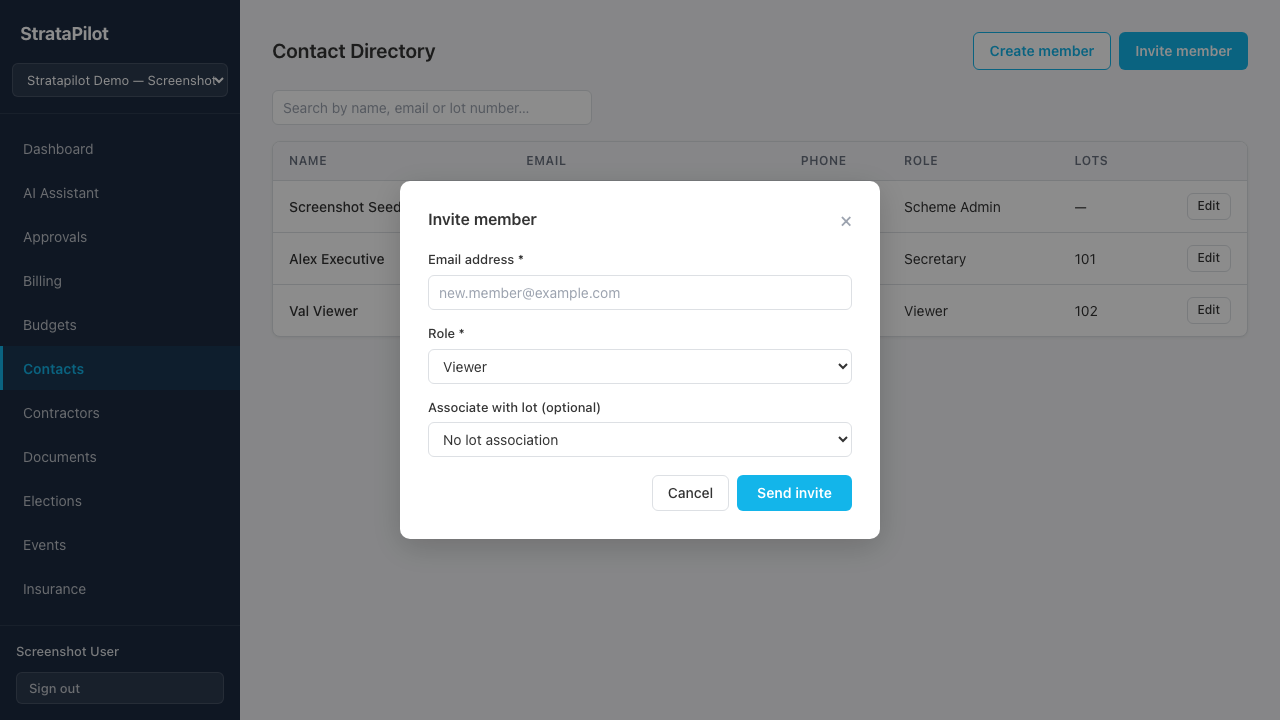
- Go to Contact Directory in the main navigation.
- Click Invite member.
- Fill in the invite form:
- Email address — the address the invite link will be sent to. This becomes the login email.
- Lot number — select the lot associated with this person. Leave blank for Caretakers.
- Role — select the role to assign:
- Viewer — for ordinary lot owners
- Ordinary Member — for committee members without an executive label
- Chairperson / Secretary / Treasurer — for executive positions
- Caretaker — for the building manager
- Click Send invite.
The invitee receives an email with a unique invite link valid for 72 hours.
Invites that are not accepted within 72 hours expire. You can resend a new invite at any time.
Resending or Cancelling an Invite
For pending invites (not yet accepted):
- Go to Settings → Members.
- Find the pending invite in the Pending invitations list.
- Click Resend to send a fresh invite email with a new 72-hour window.
- Click Cancel to revoke the invite before it is accepted.
Managing the Member List
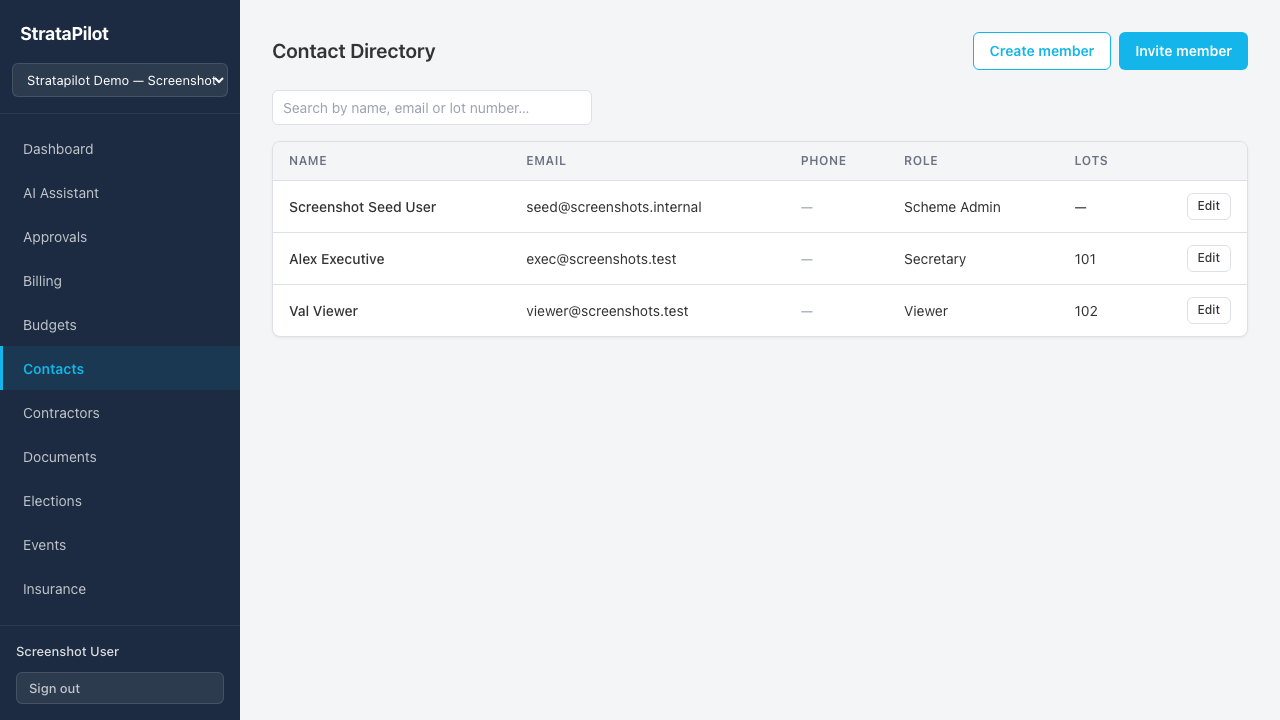
The Members section in Settings shows all active members and their roles.
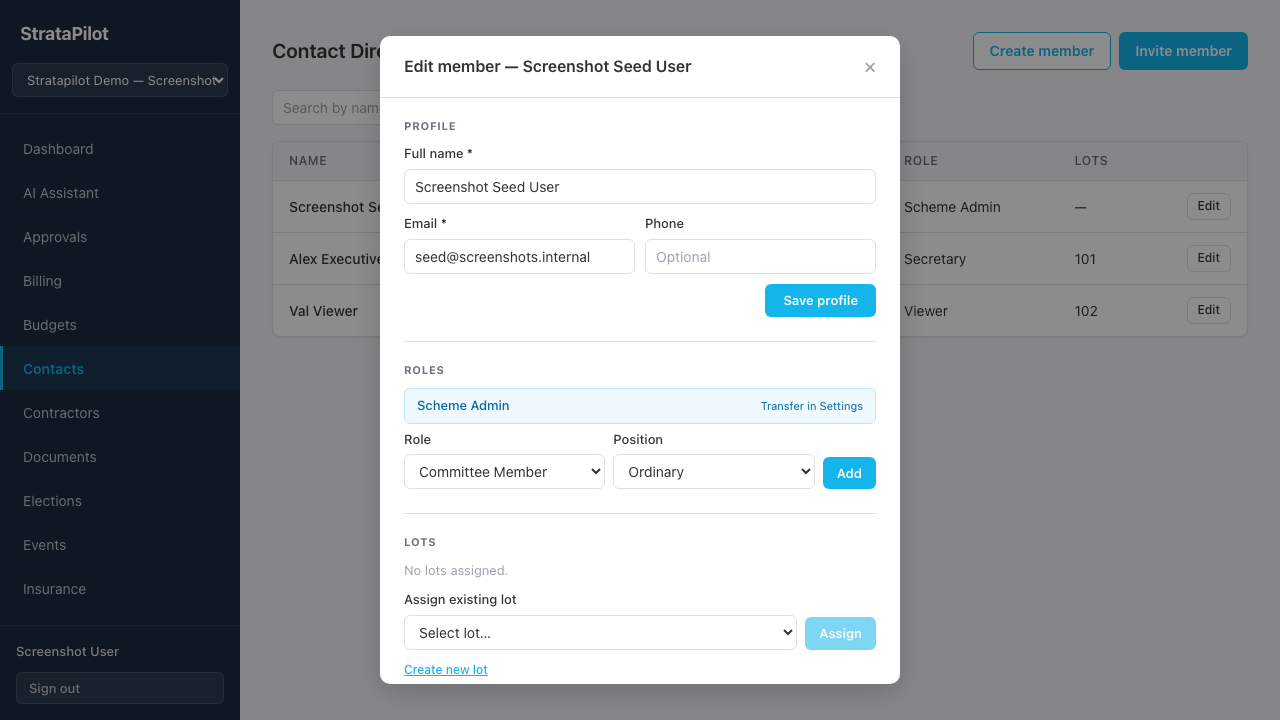
Changing a member's role
- Find the member in the list.
- Click Edit.
- Select the new role or label.
- Click Save.
The member's permissions change immediately — no re-invite required.
If you assign the Chairperson, Secretary, or Treasurer label to a new member, the previous holder of that label is automatically demoted to Ordinary Member. Notify them so they are aware of the change.
Revoking access
To remove someone from the scheme (lot sold, committee resignation, lease ended):
- Find the member in the list.
- Click Revoke access.
- Confirm the action.
The user's session is invalidated immediately and they can no longer log in to this scheme. If they have an account on another scheme, that access is unaffected.
What happens to their data after revocation:
- Documents they uploaded remain, attributed to their name
- Votes they cast remain (immutable once cast)
- Tasks assigned to them remain (reassign before revoking if needed)
- Their contact details are removed from the member directory
Handling Lot Sales
When a lot is sold, the outgoing owner's access should be revoked and the new owner invited:
- Revoke access for the outgoing owner (see above).
- Update the lot record in Settings → Lot management if the lot number or details have changed.
- Invite the new owner with their email address, selecting the correct lot number and assigning the Viewer role (or committee role if applicable).
The new owner will set up their own account when they accept the invite — there is no data transfer between accounts.
When a Committee Member Resigns
- Revoke access if they are leaving the scheme entirely, or change their role to Viewer if they remain as a lot owner.
- If they held a Chairperson, Secretary, or Treasurer label, assign that label to the new holder via Edit role.
- If a committee election is triggered by the resignation, use the Elections module to run a by-election.
Frequently Asked Questions
Can a lot owner invite themselves? No. Only committee executives can issue invites. There is no self-registration.
Can the same person be in multiple schemes? Yes. If someone owns lots in multiple schemes, or sits on multiple committees, they can have separate roles in each scheme under a single login account.
Can I invite someone without a lot number? Yes — Caretakers do not have a lot. Leave the lot field blank when inviting a Caretaker.
What happens if an invite is sent to the wrong email? Cancel the pending invite and send a new one with the correct address. Cancelled invite links immediately become invalid.
Can a Viewer see who the other lot owners are? No. The lot-owner contact directory is visible to Committee Members and Caretakers only. Viewers cannot see other members' contact details.
Can I have multiple Ordinary Members? Yes. There is no limit on the number of Ordinary Members. Only the executive labels (Chairperson, Secretary, Treasurer) are limited to one per scheme.
This guide documents Stratapilot platform behaviour. For advice on committee composition requirements in your state, consult your state's strata legislation or a licensed strata manager.